
Ragdoll Frenzy Mobile & Console Controls
Touch and gamepad habits that keep grabs clean when you are not on mouse and keyboard.
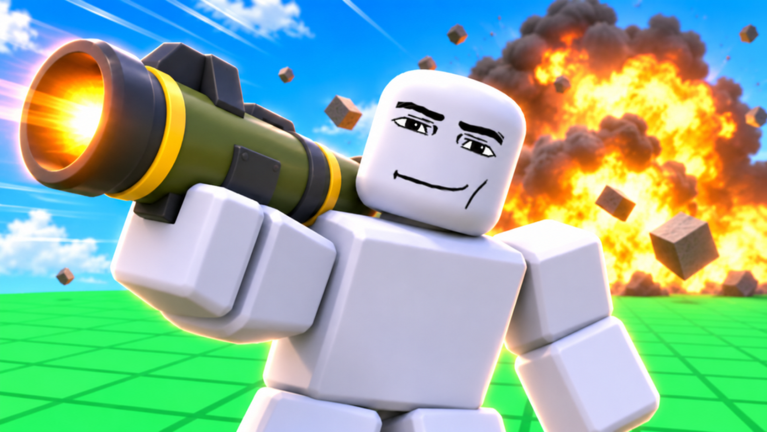
Plenty of Ragdoll Frenzy sessions start on a phone between classes or on a living-room console. JustEvolve’s physics sandbox still expects precise grabs, train awareness, and blast spacing even when you lack a mouse. This guide covers mobile and console habits that keep you competitive in twelve-player lobbies after the Multiplayer Update without inventing fake keybind tables JustEvolve has not published.
Use the on-screen prompts in your live client as the source of truth. Cross-check explanations on Controls and keep the Controls Cheatsheet nearby when you switch devices.
Mobile: map the virtual buttons first
Before you chase a train clip, stand in an empty spawn pocket and tap every visible control once. Typical Roblox sandboxes expose:
- Thumbstick or dynamic joystick for movement
- Camera drag on the right half of the screen
- Jump / interact / grab prompts that appear contextually
- Tool or weapon hotbar along the edge
- Reset or menu access through the Roblox chrome
If a prompt fails, lift your thumb, wait a beat, and try again. Rapid tap spam often cancels the grab attachment before physics locks.
Mobile grab technique
Face the dummy squarely, keep the character still for half a second, then press the interact/grab control. Drag with small thumb motions. Large circular swipes look dramatic but drop bodies. When you want height, combine a short jump with a gentle pull instead of flinging the stick to maximum.
Practice the same three drills from Getting Started: drag three meters, set upright, pivot camera after the lock. Those drills matter more on touch because accidental camera pans are common.
Mobile shooting and blast spacing
Fire while standing still whenever possible. Moving and aiming on a small screen stacks errors. Pick one weapon family per take—see Grab, Shoot & Blast—and keep the dummy in the center third of the display so blast radius stays readable. If the hotbar covers your target, rotate the camera slightly before the shot instead of stretching your thumb across the UI.
Mobile train safety
Audio cues are easy to miss with earbuds at low volume. Raise game audio, watch both track directions, and never stand on rails while adjusting UI scale. If a train approaches during a grab, release early and step opposite the approach. Full hazard routing is in Train & Machines.
Console / gamepad basics
On gamepad, expect Roblox defaults for move and look, with face buttons or triggers bound to jump, interact, and tool use depending on the current build. Because JustEvolve can retune prompts during November hotfixes, treat community bind charts as hints, not gospel.
Recommended console habits:
- Lower look sensitivity until you can track a dummy without overshooting.
- Use the interact button only when the prompt is visible—pre-tapping wastes the press.
- Assign a comfortable finger for reset so you can recover from bad physics quickly.
- Toggle slow-mo deliberately; holding the wrong bumper mid-finisher ruins timing. See Slow-Mo Finishers.
Shared lobby etiquette on touch and pad
Public servers still hold twelve players. Mobile and console players often sit closer to the screen and react slower to chat. Compensate with clearer physical etiquette: do not camp spawn with wide blasts, leave space for someone’s slow-mo take, and reset yourself if you trap another avatar. Those rules match the Tips & Tricks list and the Multiplayer Update checklist.
Performance tips that protect physics reads
- Cap background apps on phones so frame pacing stays steady during grabs.
- Avoid ultra graphics if your device dips hard near machines—input lag feels like “broken grabs.”
- On console, close overlays that steal focus from the Roblox client.
- Rejoin once if streaming hitching desyncs the dummy attachment.
Device switch checklist
When you move from PC to mobile or console mid-day:
- Re-read on-screen prompts for grab and tools.
- Complete three quiet grabs before weapons.
- Dodge one train pass without filming.
- Confirm slow-mo toggle location.
- Skim November Hotfixes if the place updated since your last PC session.
Codes and scripts on mobile
Redeem flows, when they exist, usually live inside Shop or Gift panels that are harder to tap accurately on phones. As of mid-November 2026 there are still no confirmed active Codes. Do not install random mobile “executors” promising Ragdoll Frenzy unlocks—most target other titles and violate Roblox rules. Prefer the Scripts Hub risk notes, then stay on vanilla play.
What to practice for ten minutes on touch
- Button map walkthrough.
- Three upright grabs.
- One stationary weapon burst.
- One early train dodge.
- One short slow-mo release.
That set transfers cleanly when you later open the Guides Hub for deeper PC-oriented tech.
What to read next
Continue with Tips & Tricks for lobby habits, Controls for platform-agnostic explanations, and the Controls Cheatsheet for a compact table. Creator context sits on JustEvolve, while official destinations stay under Official Links.
Mobile and console players can stage excellent clips. You just need calmer thumbs, louder train audio, and the discipline to face the dummy before you chase cinema.
Frequently Asked Questions
Quick answers players ask about Ragdoll Frenzy every day.
Does Ragdoll Frenzy support mobile and console?
Yes. It runs through the Roblox client on supported mobile and console platforms. Use on-screen prompts for the live binds.
Why do grabs fail more often on my phone?
Rapid tap spam and camera pans cancel attachments. Face the dummy, pause briefly, then press interact once.
What sensitivity should I use on controller?
Lower look sensitivity until you can track a dummy without overshooting, then raise it slowly for train takes.
Can I redeem codes on mobile?
When codes exist, redemption usually sits in a Shop or Gift panel. None are confirmed active yet—check the Codes Hub.
Where do I find a short controls table?
Open the Controls Cheatsheet tool page and pair it with this mobile and console guide.